History and change detection
See your site exactly as it looked on any day since Historian started capturing it, with that day's numbers and the events around it.
Your site, on any day
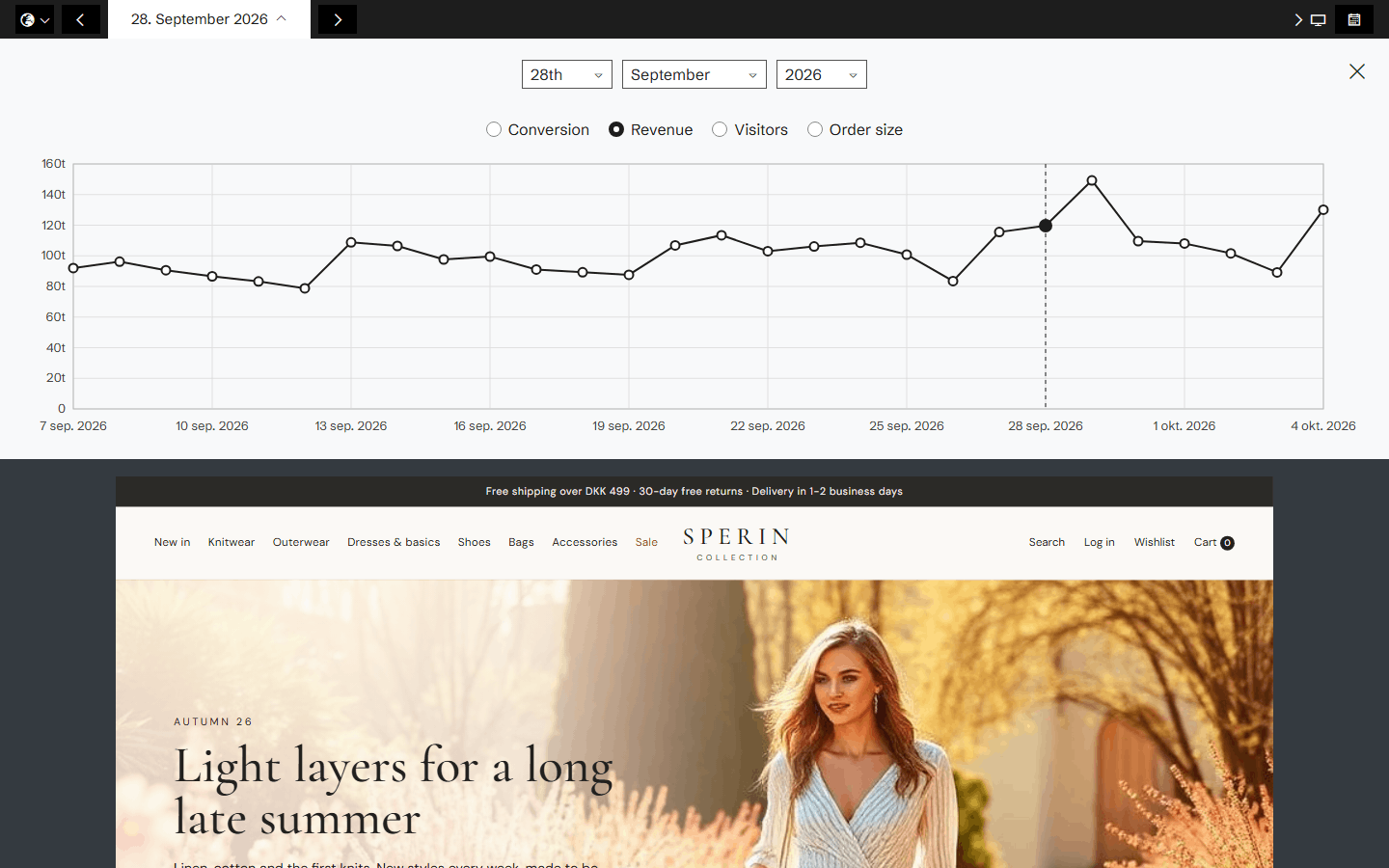
Pick a date and History shows your site as it looked that day, built from the pages Historian captured. It is the real site in a frame you can click through, page by page, not a description of it.
The date picker comes with a chart of your numbers, so you can see a good day or a bad day and open the site as it was on exactly that day. A traffic filter narrows the numbers to the traffic you care about.
A calendar of what happened
The Calendar view lays out the month: the events your team adds, such as a campaign or a sale, each with a name, a description, a start date and a duration, next to the weather for each day. When the numbers move, the reason is often on the calendar.
What changed, element by element
Every capture is compared with the one before. Open a page in the Time Machine to see which elements changed and when, sorted into direct changes, changes caused by other pages, and frequently changing or dynamic content, and compare the versions before and after.
Related features
All features →Chronicle Capture
Every day Historian captures your site as your visitors saw it: the page, its screenshot and every element on it, kept as a record you can go back to.
Time Machine
Go back to any version of a page, with the heatmap for exactly that version and a written summary of what changed.
Version comparison
Put two periods or two versions of a page side by side, each with its own heatmap and its own numbers.
Heatmap
The most capable heatmaps in e-commerce. Every click is tied to the element that was clicked, the version of the page it was on, and the conversions, revenue and products that followed.
Stop guessing why revenue dropped.
Book a demo and we'll show you what Historian finds on your own store.